Reference Manager
The Reference Manager in LitView helps you save, organize, and revisit references in one place. You can create workspaces for different projects, group references into folders, create references manually, import or export references, and generate citations in common formats.
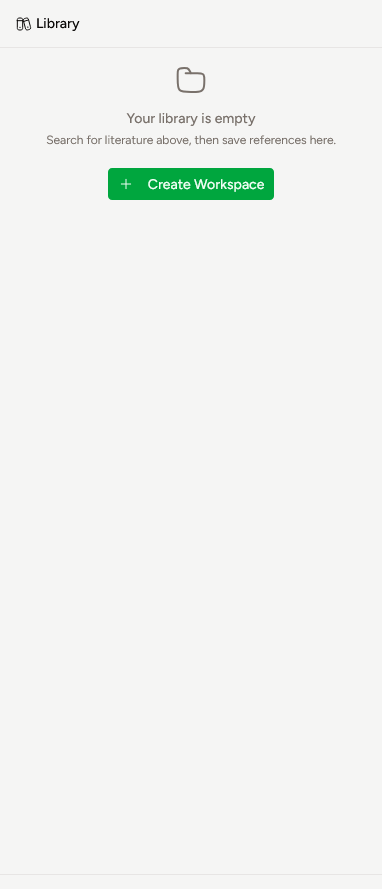
What the Reference Manager is for
Use the Reference Manager to:
- organize references by project or topic
- create workspaces and folders
- save useful papers from search results
- create personal references manually
- revisit saved references later
- import and export references
- generate citations in common citation styles
Organization: folders and workspaces
LitView uses workspaces and folders to help keep your references organized.
Workspaces
A workspace is a top-level space for a project, review, topic, or research question.
Examples:
- My Research Project
- CRISPR Gene Therapy Review
- Reference Screening Project
Use separate workspaces when you want to keep references for different projects distinct.
Folders
A folder helps organize references within your library or workspace.
Examples:
- Background reading
- Papers to review
- Included studies
- Methods papers
- References to cite later
Folders are useful when you want to group related references inside a project.
Creating folders and workspaces
Create a workspace
To create a new workspace:
- Open the Library.
- Select Create Workspace.
- Enter a Name.
- Optionally add a Description.
- Select Create.
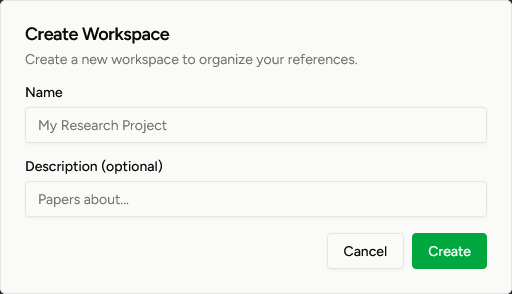
Once created, the workspace will appear in your library.
Create a folder
To create a new folder:
- In the Library, find the workspace where you want to create the folder.
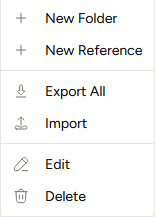
- Right-click the workspace to open the actions menu.
- Select New Folder.
- Enter a folder name.
- Select Create.
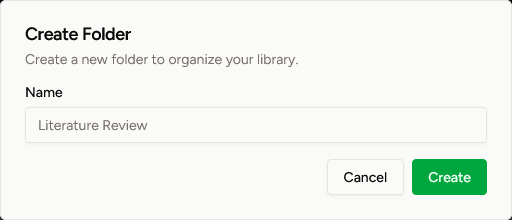
Use folders to keep related references together.
Creating references
References can be added to LitView in two ways:
- by saving a paper from search results
- by creating a personal reference manually
Save a paper from search
To save a paper from search:
- Search for a paper in LitView.
- Open the paper record.
- Select Save.
- The paper will be added to your library.
Saved references can then be organized into the appropriate workspace or folder.
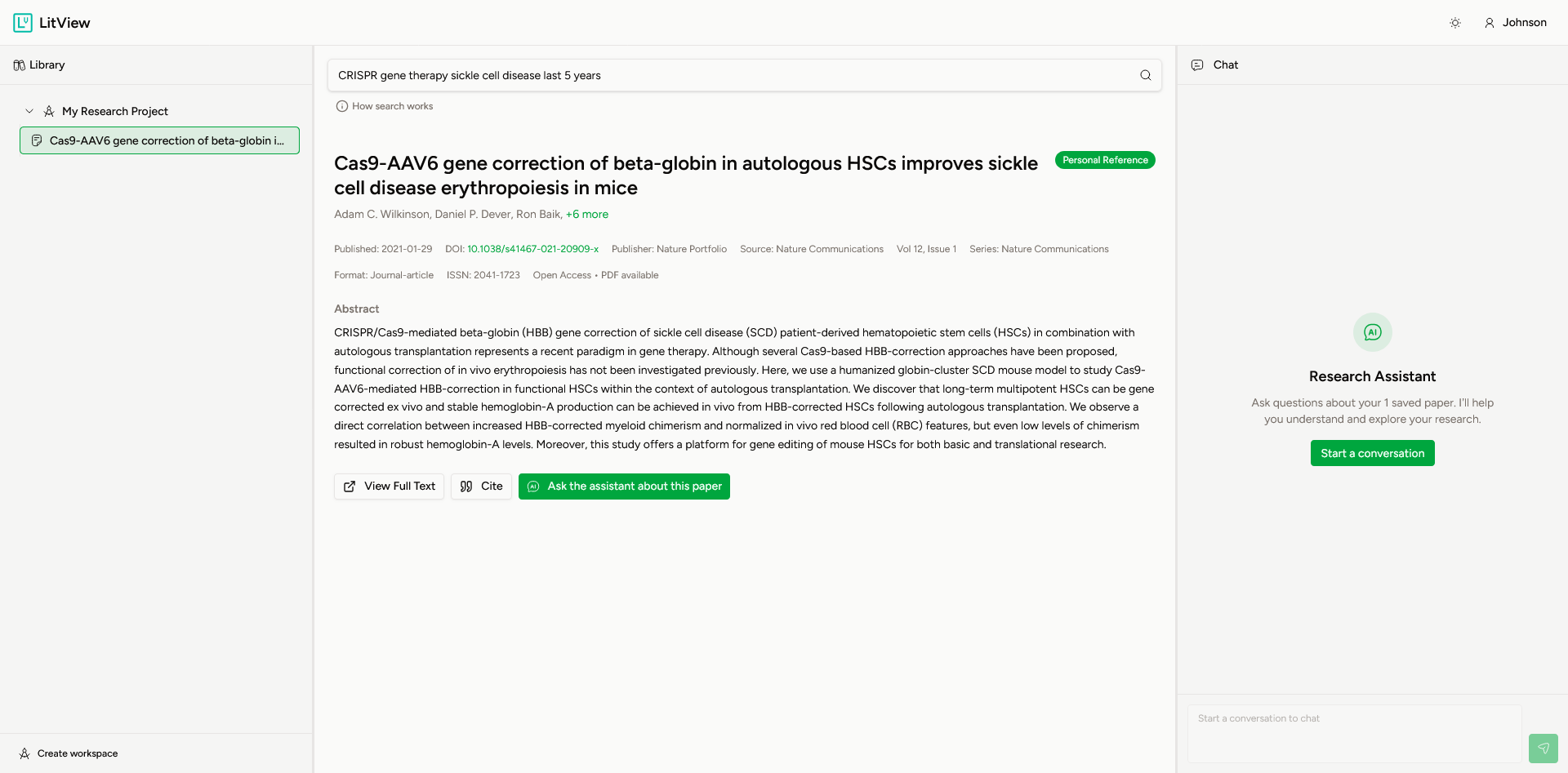
A saved reference may include:
- title
- authors
- abstract
- publication date
- journal or source
- DOI
- citation count
- access options such as full text or PDF availability
Create a personal reference
To create a personal reference manually:
- In the Library, find the workspace where you want to add the reference.
- Right-click the workspace to open the actions menu.
- Select New Reference.
- Enter the available reference details.
- Select Create.
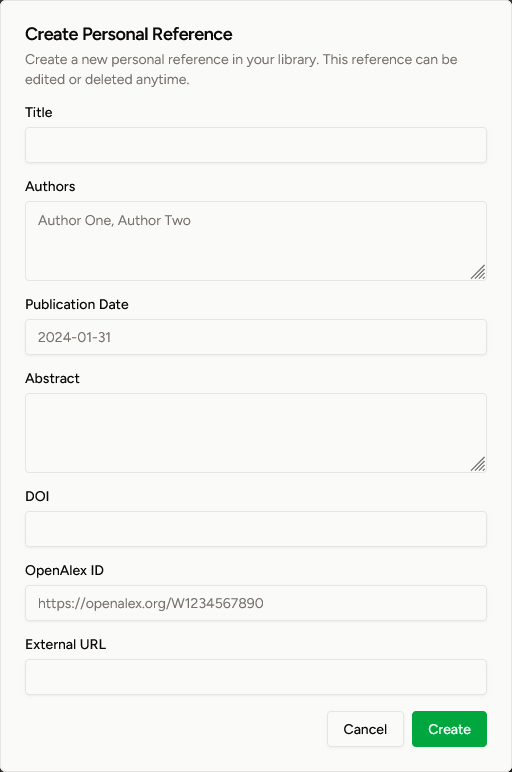
A personal reference can include:
- Title
- Authors
- Publication Date
- Abstract
- DOI
- OpenAlex ID
- External URL
Personal references are useful when you want to add a reference manually to your library.
Exporting and importing
LitView provides options to move references into or out of your library.
The current library actions include:
- Export All
- Import
Export All
Use Export All when you want to export the references currently stored in your library.
This is useful when you want to:
- use your references in another tool
- keep a copy of your reference list
- move references into another writing or citation workflow
Import
Use Import when you want to bring references into LitView from another source.
This is useful when you want to:
- add references collected elsewhere
- move references from another reference manager
- bring an existing reference list into your LitView library
Citing references
LitView allows you to generate citations directly from a saved reference.
How to cite a reference
To generate a citation:
- Open the saved reference.
- Select Cite.
- Choose the citation format you want.
- Review the generated citation.
- Select Copy to Clipboard.
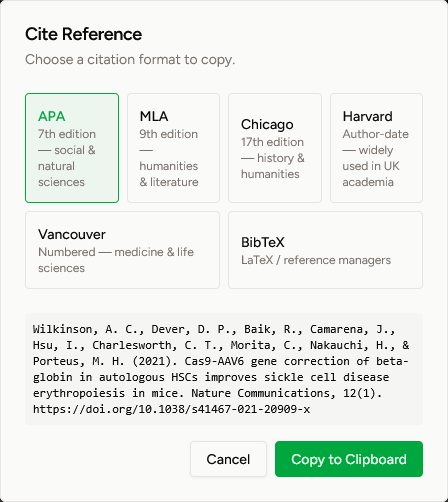
You can then paste the citation into your manuscript, notes, bibliography, or reference list.
Available citation formats
The following citation options are shown in the current interface:
-
APA
7th edition — social and natural sciences -
MLA
9th edition — humanities and literature -
Chicago
17th edition — history and humanities -
Harvard
Author-date — widely used in UK academia -
Vancouver
Numbered — medicine and life sciences -
BibTeX
LaTeX / reference manager format
Use BibTeX if you are working with LaTeX or another reference management workflow.
Managing references and folders
LitView also provides options to manage items already in your library.
The current menu options include:
- Edit
- Delete
Edit
Use Edit to update an existing item, such as a folder or reference.
Delete
Use Delete to remove an item from your library.
Review items carefully before deleting them.
Suggested workflow
A simple way to use the Reference Manager is:
- create a workspace for your project
- create folders to organize your references
- search for papers in LitView
- save relevant papers as references
- create personal references when needed
- import or export references as part of your workflow
- cite references when writing
This keeps reference organization, review, and citation in one workflow.